

Start a workflow from Shopify Flow
If you already use Shopify Flow, you do not have to choose. The Flow action Run a Workflow Suite workflow starts one of your Workflow Suite workflows from any Flow workflow, with data from that Flow workflow. Flow decides when; Workflow Suite does the work: code steps, HTTP requests, files, loops, retries and everything else a workflow can do.
The other direction, a Workflow Suite workflow starting a Flow workflow, is Send events to Shopify Flow.
What you need
- Shopify Flow installed on your store. It is free.
- Nothing to connect: Workflow Suite adds its action to Flow when you install it.
1. Create the workflow in Workflow Suite
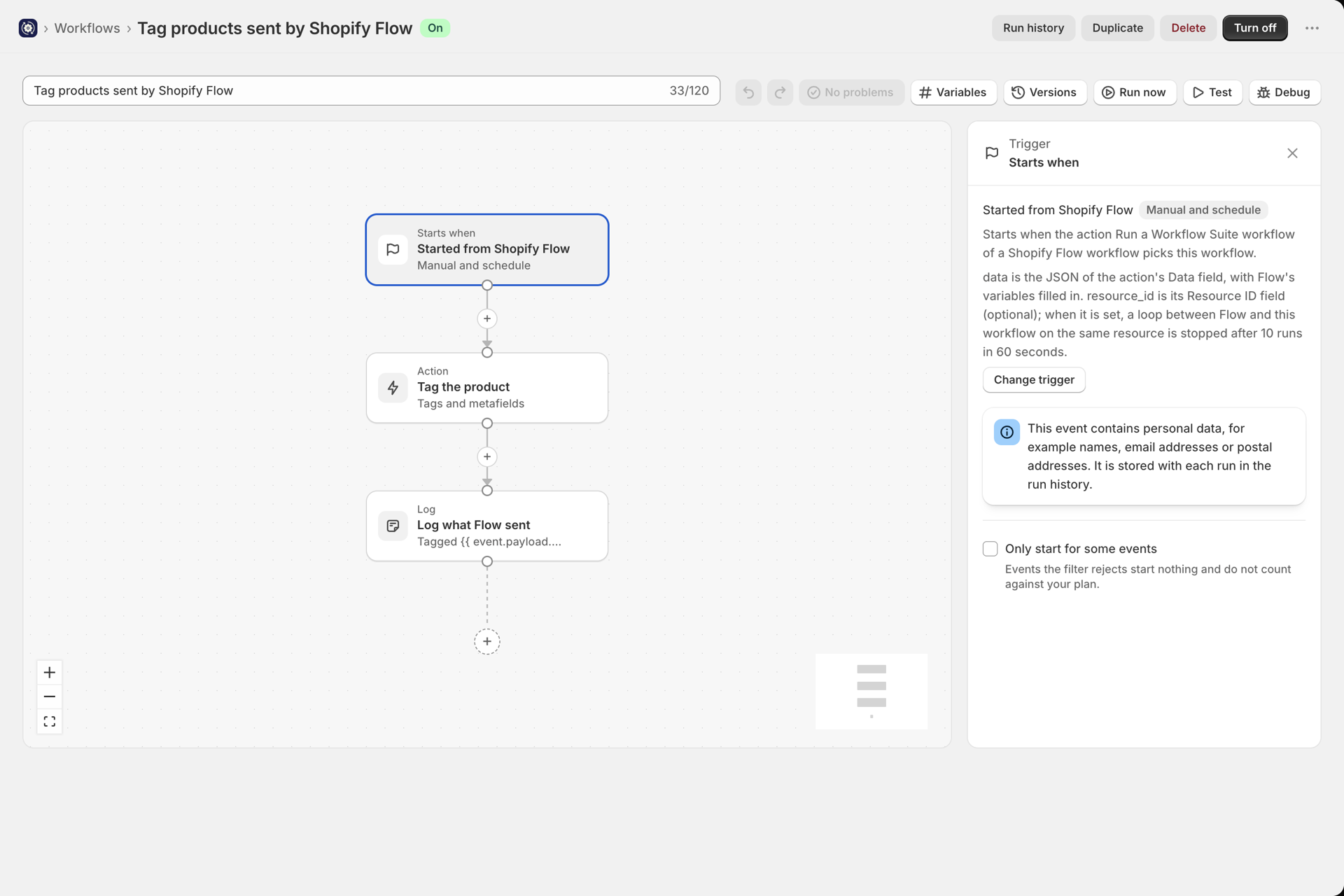
- Create a workflow and choose the trigger Started from Shopify Flow (group Manual and schedule).
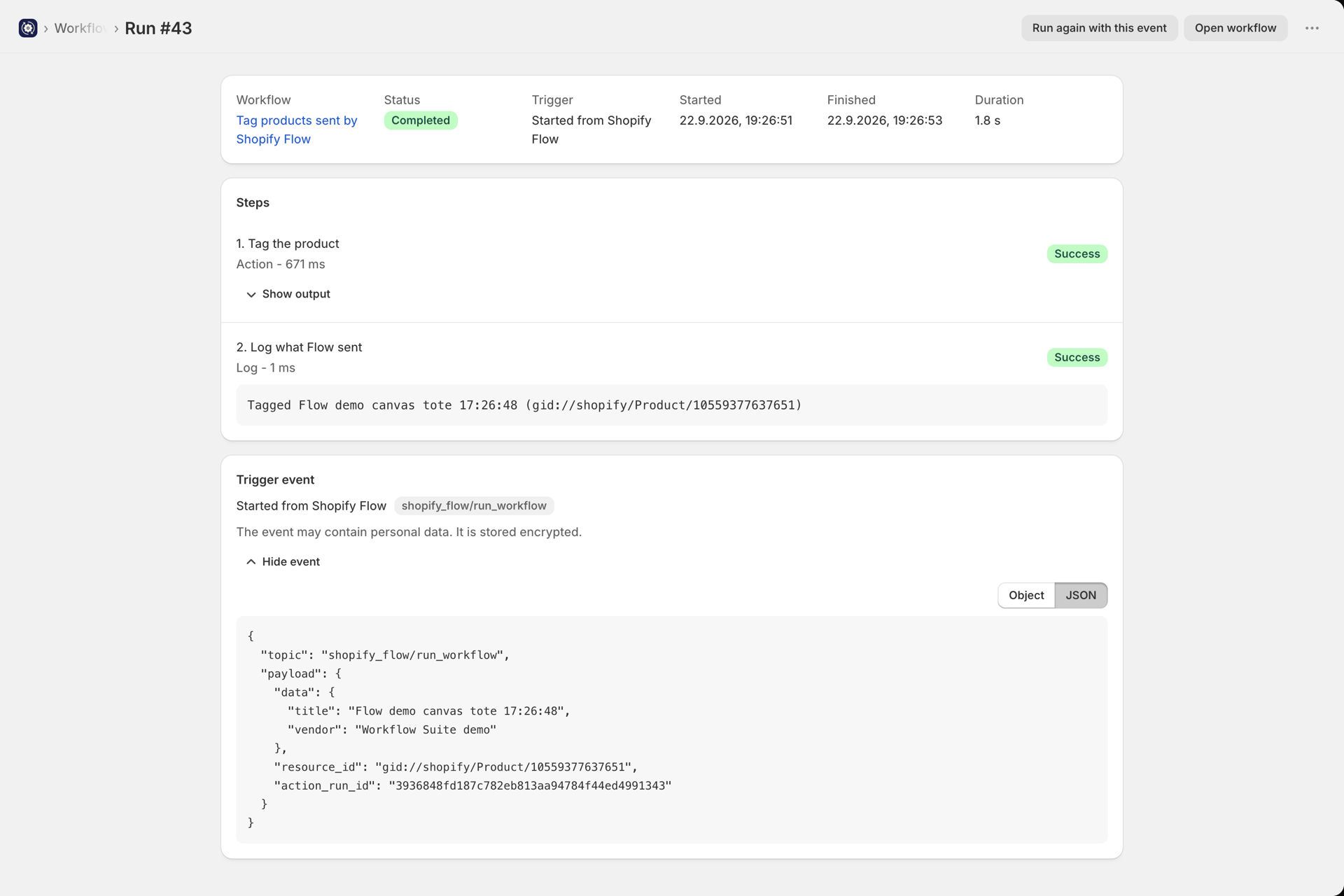
- Build the steps. They read what Flow sent:
| Path | What it holds |
|---|---|
event.payload.data |
The JSON of the action's Data field, with Flow's variables filled in |
event.payload.resource_id |
The action's Resource ID field, or empty |
event.payload.action_run_id |
Flow's id for this step of the Flow run |
- Save and select Turn on. Flow can only start a workflow that is on.
For example, a workflow that tags every product Flow sends: one Add product tags step with the product id {{ event.payload.resource_id }}.
2. Add the action in Shopify Flow
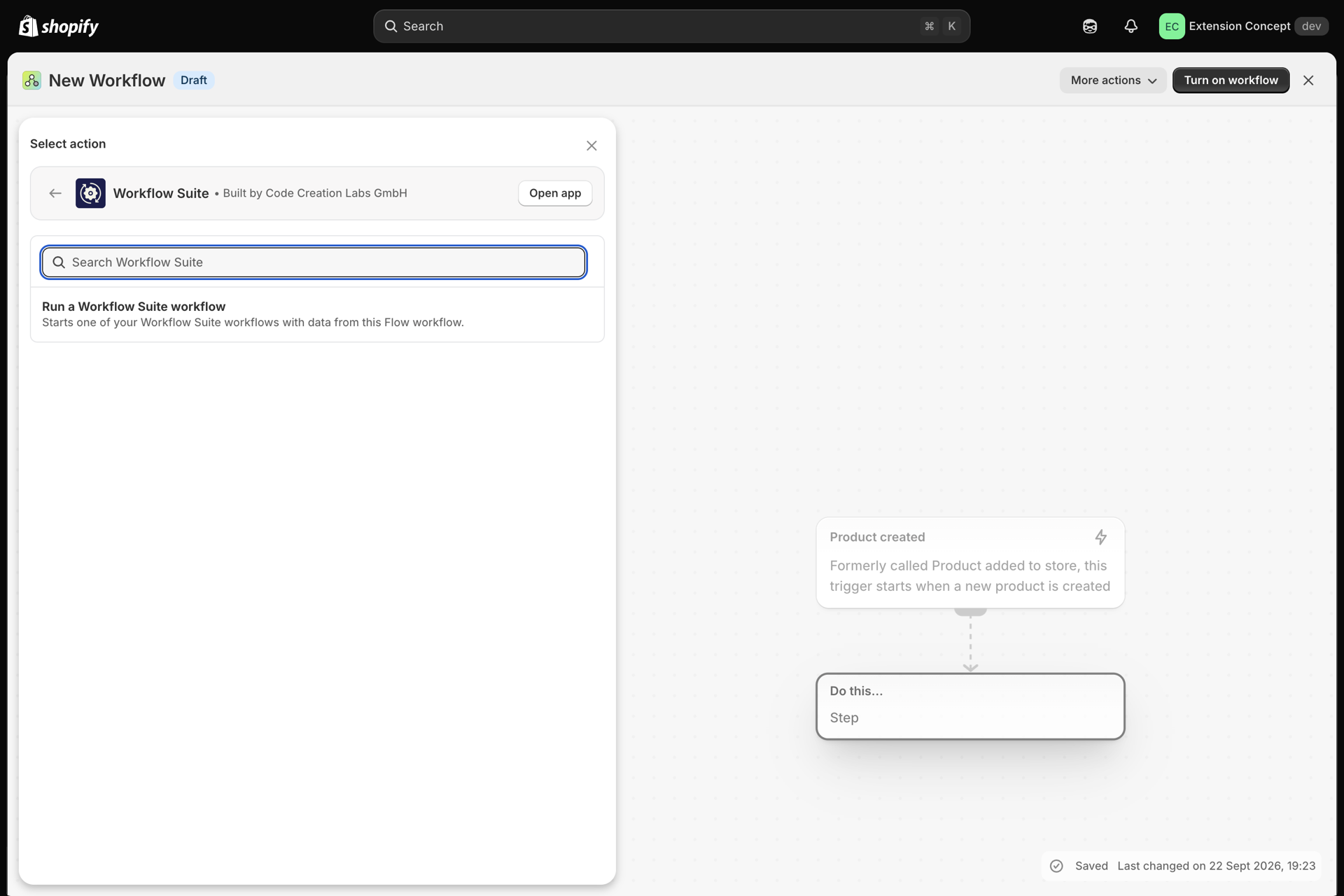
- In Shopify Flow, create a workflow and pick any trigger, for example Product created.
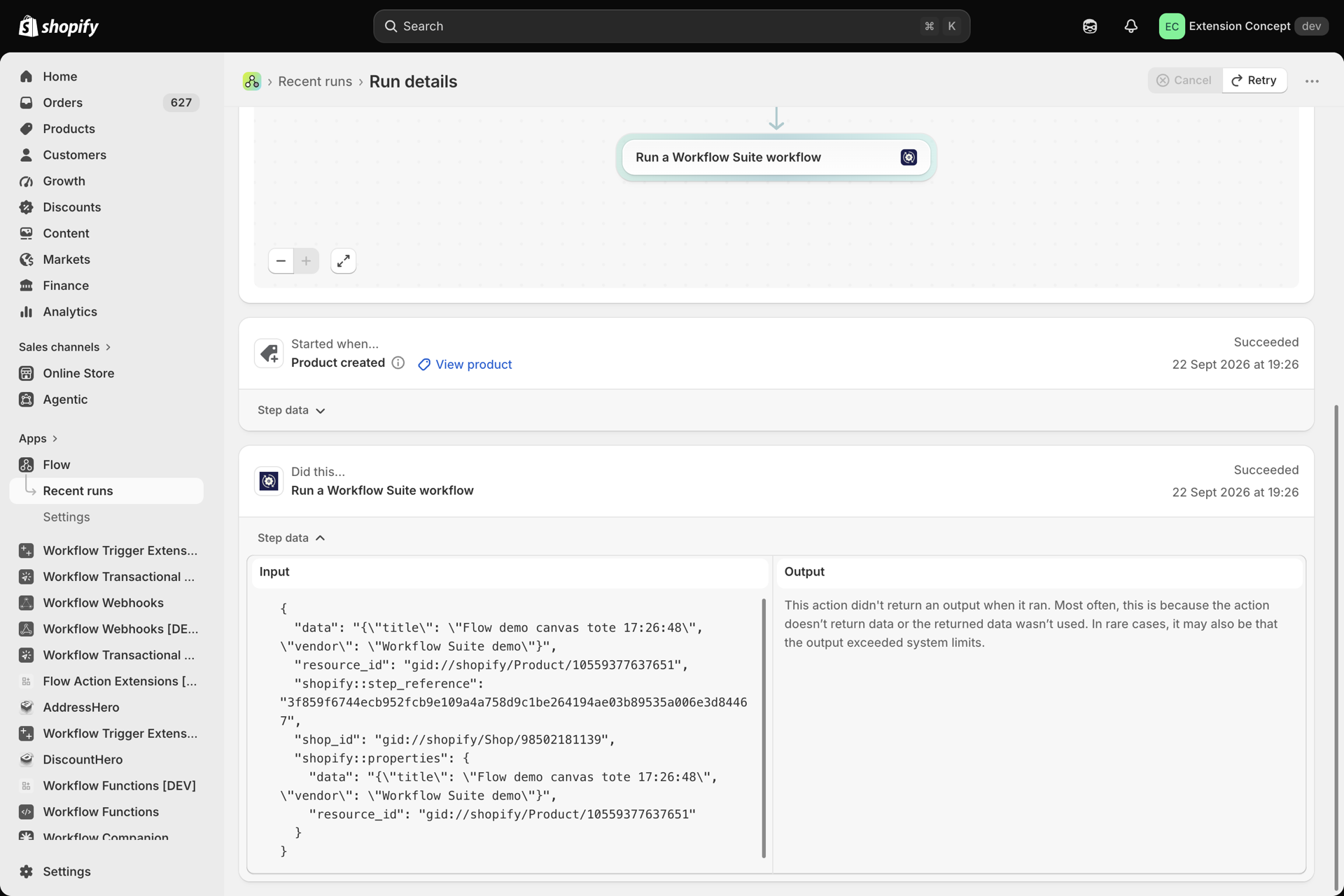
- Add an action, open Workflow Suite and pick Run a Workflow Suite workflow.
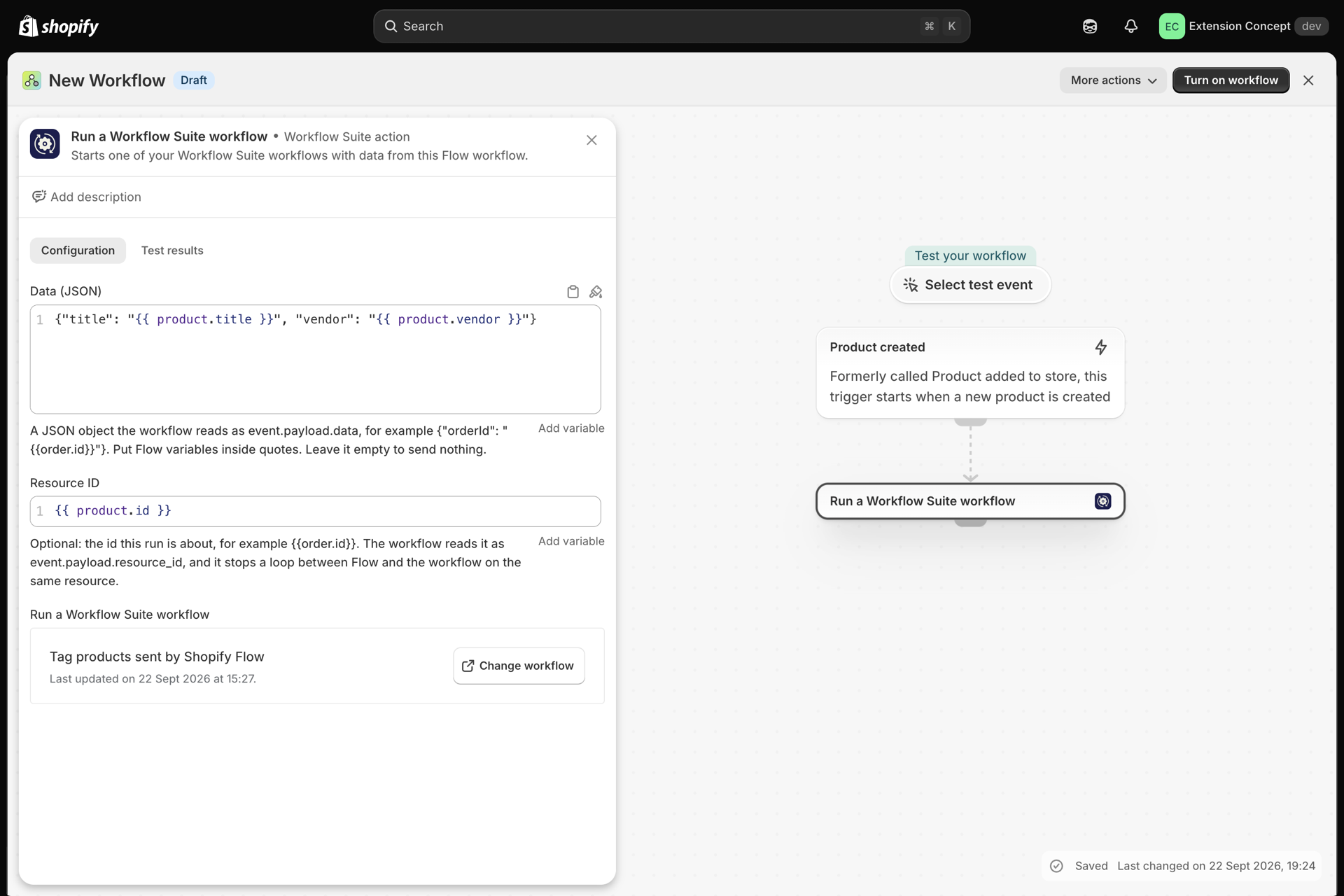
- Fill in Data (JSON): a JSON object with Flow's variables inside quotes.
{"title": "{{ product.title }}", "vendor": "{{ product.vendor }}"}- Fill in Resource ID with the id the run is about, for example
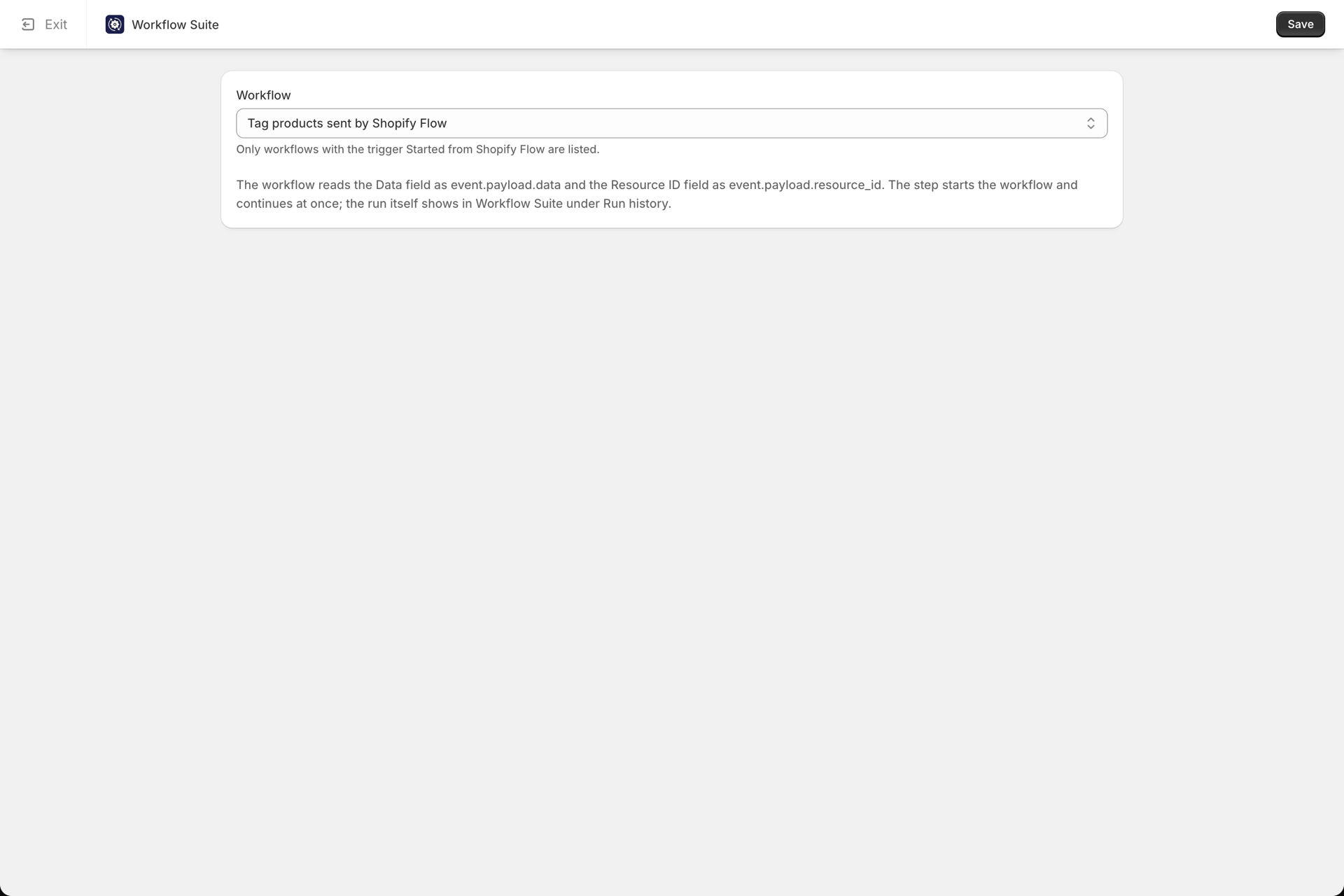
{{ product.id }}. It is optional, but it lets loop protection recognise a loop (see below). - Select Choose a workflow. Our configuration page opens inside Flow: pick the workflow, select Save, then Exit. The list only shows workflows with the trigger Started from Shopify Flow.
- Turn the Flow workflow on.
Flow checks the step before it turns the workflow on. It tells you when no workflow is chosen, when the chosen workflow is turned off or was deleted, and when the Data field is not valid JSON.
Typing in the Data field: Flow's editor closes {{ for you and adds }}. Type the variable name, then move the cursor to the end with the End key before you go on, and check the quotes at the end.
What happens when it runs
- The Flow step starts the workflow and finishes at once; it does not wait for the run. A workflow with a Wait step works fine.
- The run shows in the run history of the workflow in Workflow Suite, like any other run.
- Flow gets an answer it can use in later steps:
started(true or false),statusandmessage.statusisSTARTED,FILTERED(the workflow's trigger filter did not match) orSUPPRESSED(the plan's run limit or loop protection; the run history says why). - Every started run counts as one run on your plan. Filtered runs are free. See Plans, runs and extra runs.
- When Flow retries the same step, no second run starts.
- The trigger filter of the workflow applies, like for every trigger. See Trigger filters.
Loops between Flow and Workflow Suite
A Flow workflow that starts a Workflow Suite workflow that changes the same product, which starts the Flow workflow again, is a loop. Set Resource ID: when one workflow runs more than 10 times in 60 seconds for the same resource, Workflow Suite turns it off and tells you. See Loop protection.
Personal data
Whatever you put into the Data field is stored with the run, encrypted, and shown in the run history. Only send what the workflow needs.