

Tutorial: tag high-value orders and tell Slack
In this tutorial you build a workflow that tags every order of 1,000 or more and posts a line about it to Slack. You start from a template, change one number, add one step, test it without touching a single order, and turn it on. It takes about ten minutes.
You need: a Slack incoming webhook URL, saved as the secret SLACK_WEBHOOK_URL on the Secrets page (see Secrets), and read and write access to orders on the Permissions page (see Permissions and store data access).
1. Create the workflow from the template
- Open Workflows and select Browse templates in the top bar.
- In the search box type
high-value. The card Tag high-value orders appears: trigger Order created, 2 steps, and one setup note. - Select Use template.
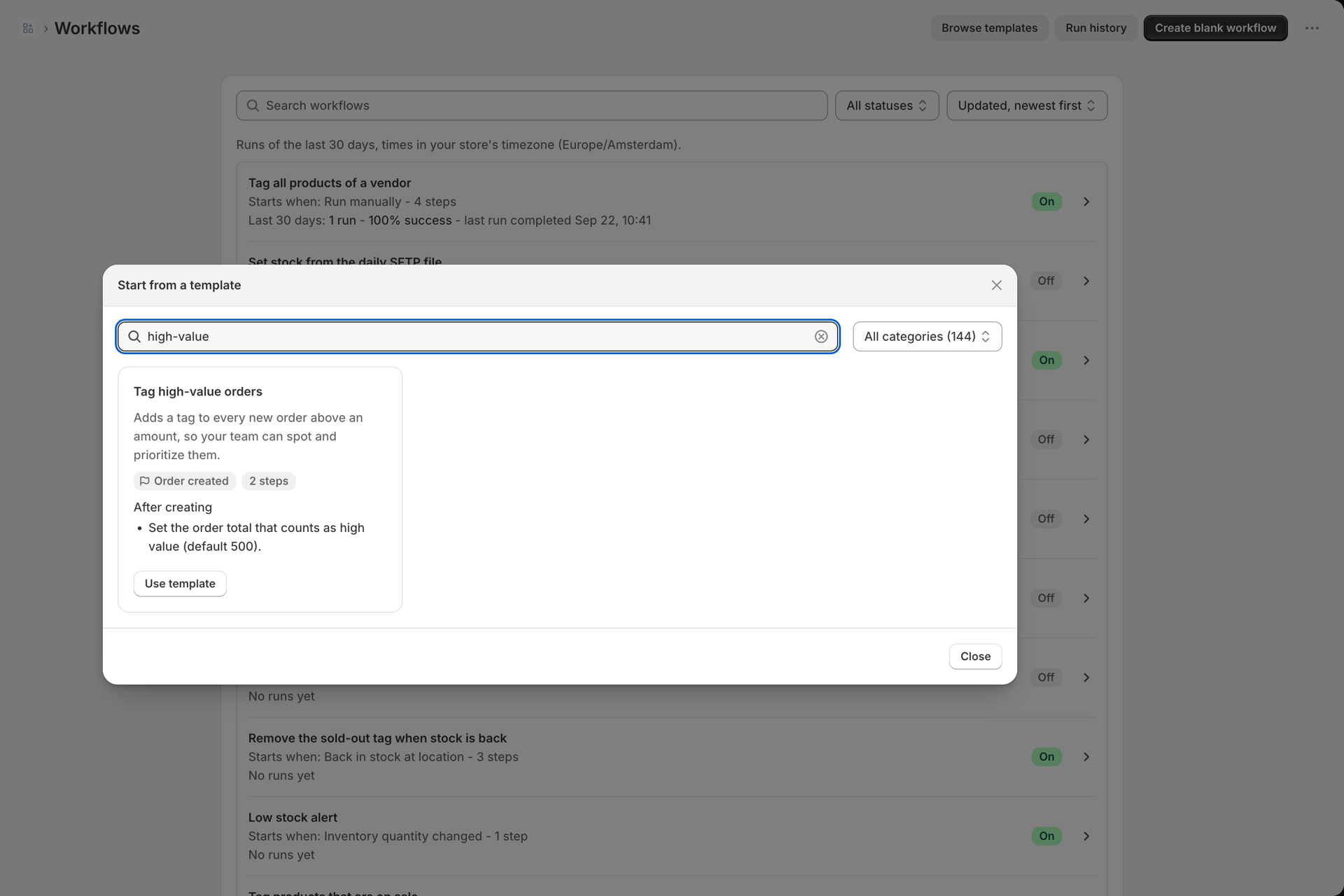
The editor opens with your copy. A blue banner repeats the setup note from the card: set the order total that counts as high value. The canvas already holds the trigger Order created, a Condition and the action Tag the order.
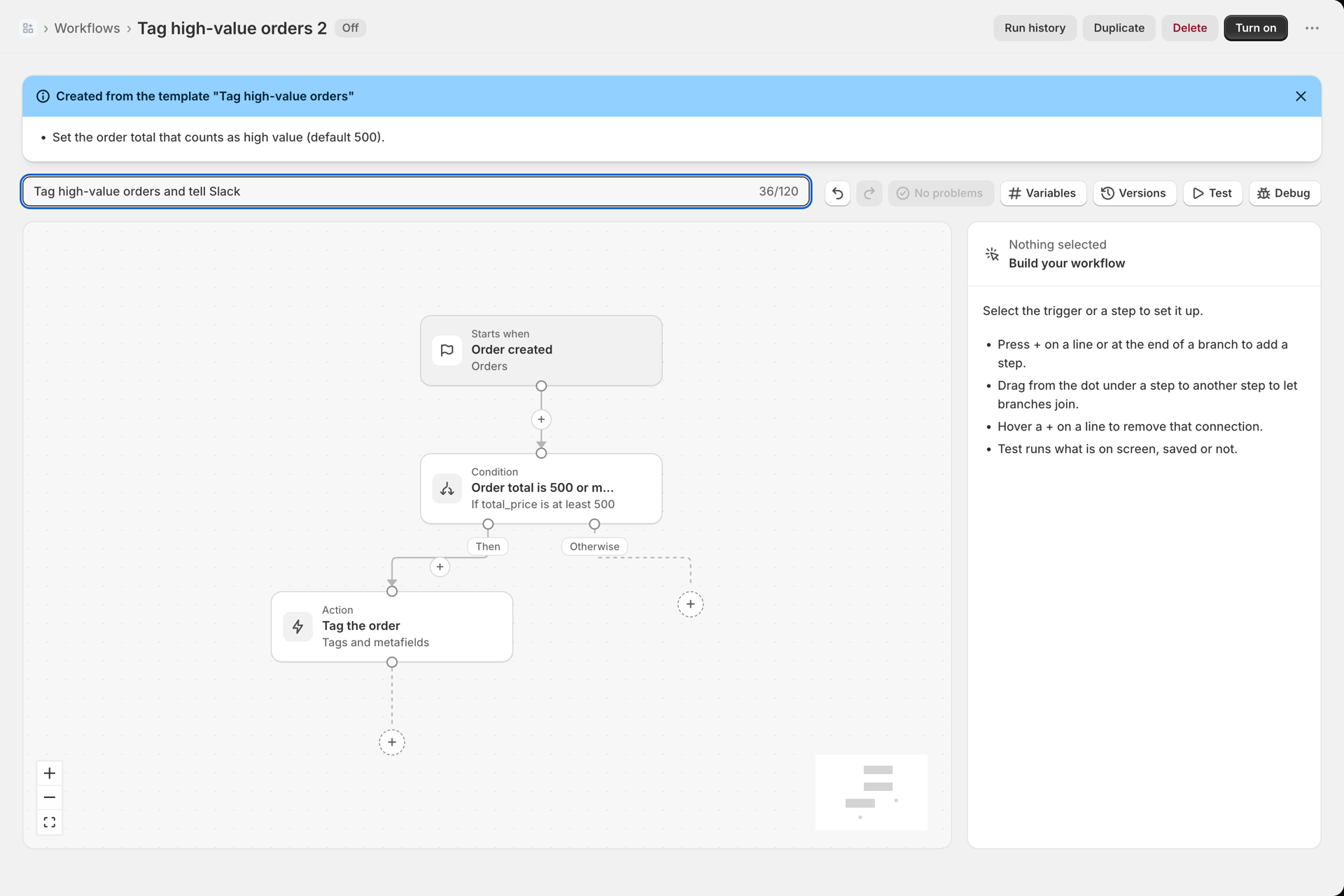
- Give it a name: replace the text in Workflow name above the canvas, for example
Tag high-value orders and tell Slack.
2. Raise the amount
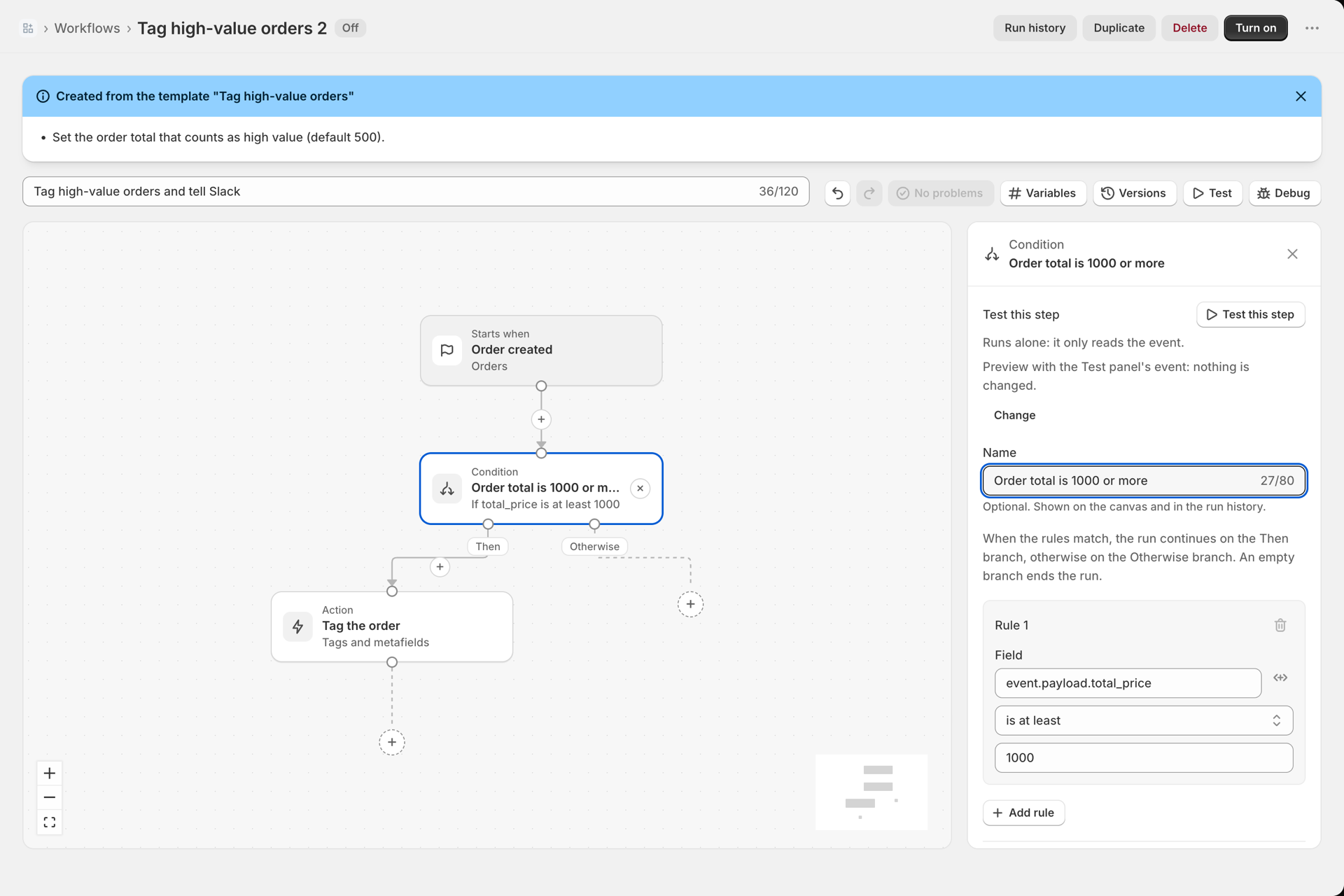
- Select the condition Order total is 500 or more on the canvas. Its settings open in the side panel.
- Under Rule 1 the field is
event.payload.total_priceand the comparison is is at least. Change Value from500to1000. - Change Name to
Order total is 1000 or more, so the canvas says what the rule does.
3. Add the Slack message
- Press the + under Tag the order. The Add a step window opens.
- Under Actions, pick Send Slack message.
- In the side panel set Name to
Tell the team on Slack. - In Webhook URL write
{{ secrets.SLACK_WEBHOOK_URL }}. The URL itself stays in the secret, never in the workflow. - Write the Message. Press the variable button on the right of the field to pick values of the order, for example:
High-value order {{ event.payload.name }}: {{ event.payload.total_price }} {{ event.payload.currency }}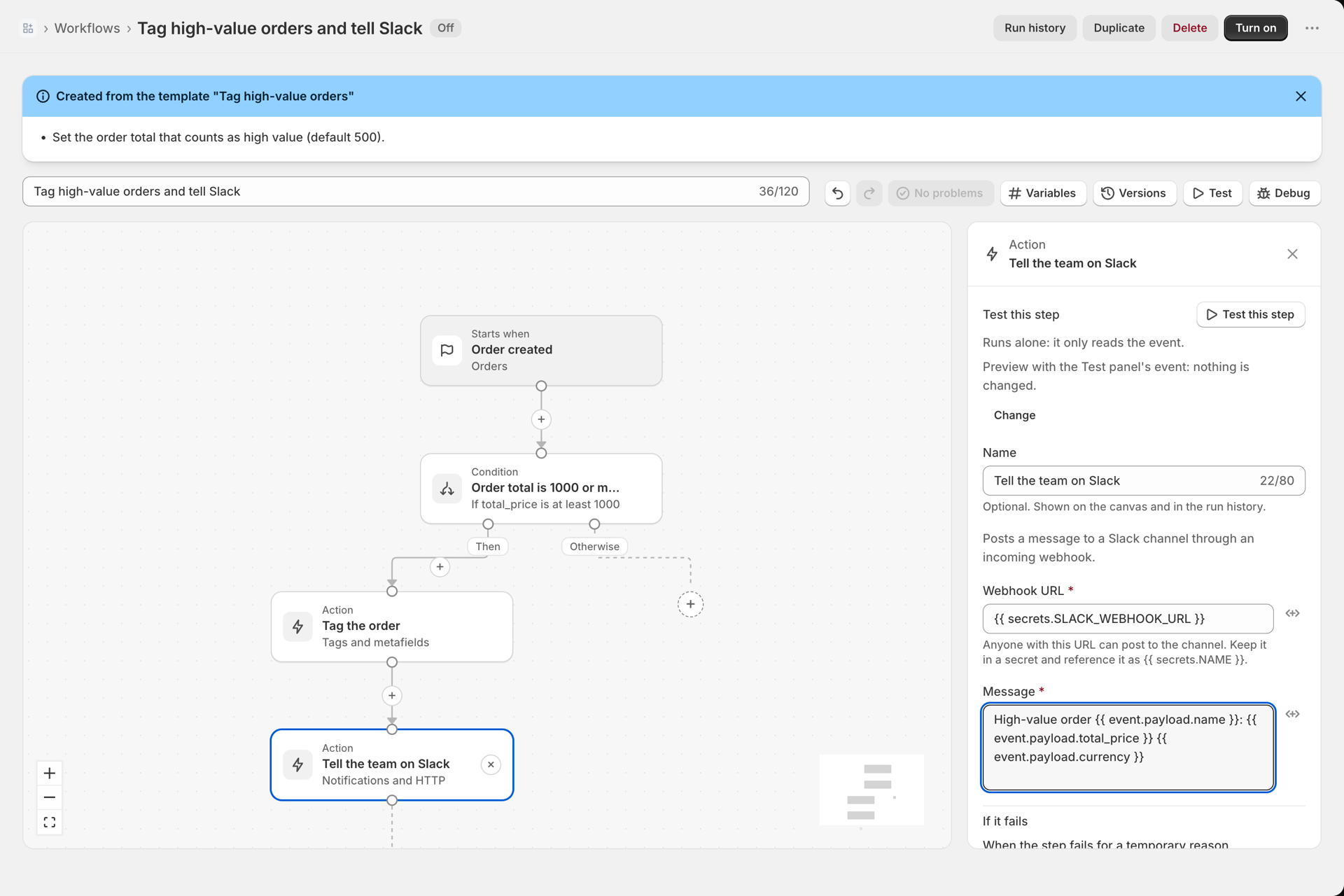
- Select Save in the bar at the top of the admin. The button next to the undo arrow should read No problems.
4. Test it without touching an order
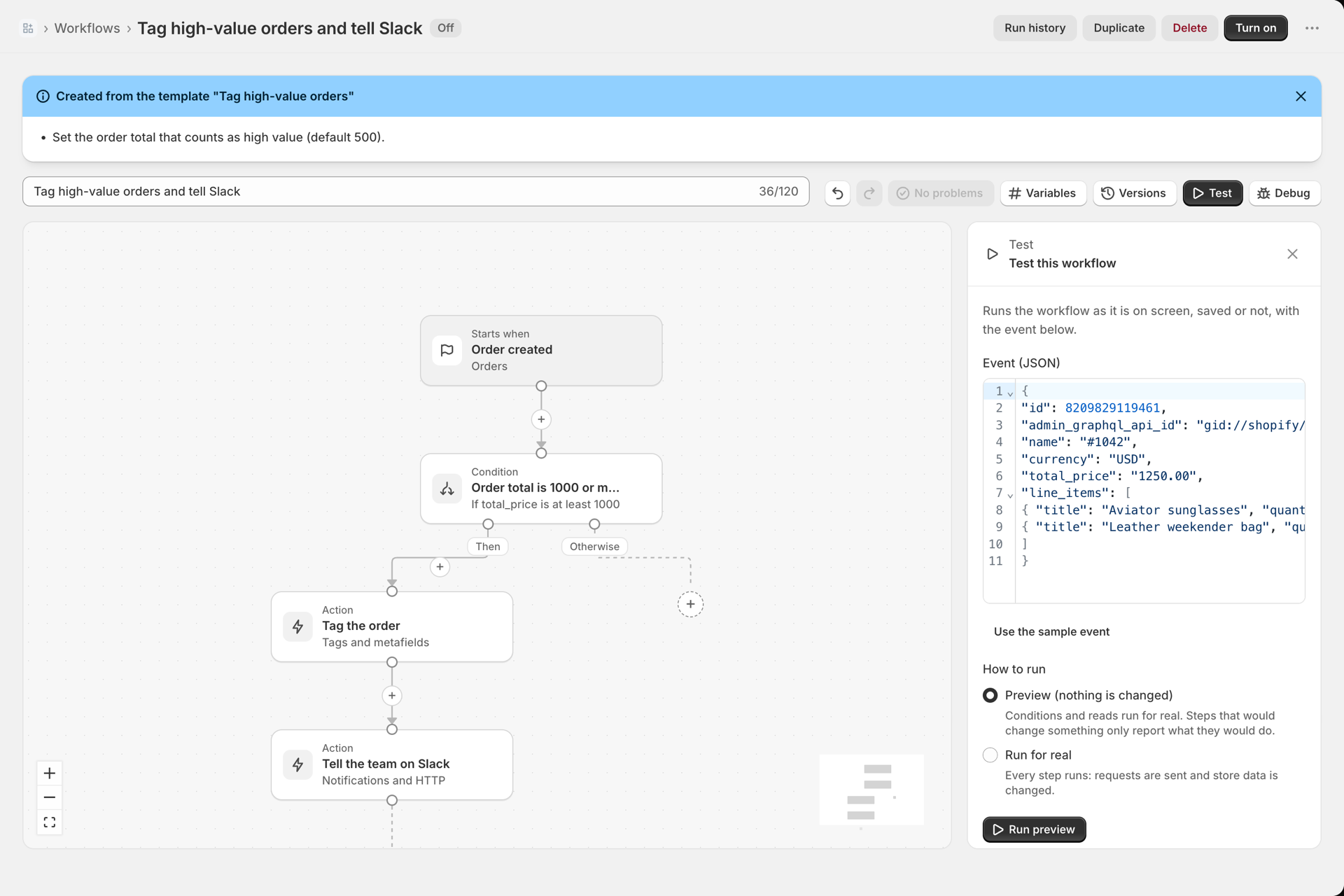
- Select Test in the toolbar. The panel Test this workflow opens with the sample event of the trigger under Event (JSON).
- The sample order is below 1,000, so it would stop at the condition. Edit the event: change
total_priceto"1250.00". You can shorten the event to the fields your steps read, like below. Keepadmin_graphql_api_id: Tag the order reads it to find the order. - Keep Preview (nothing is changed) and select Run preview.
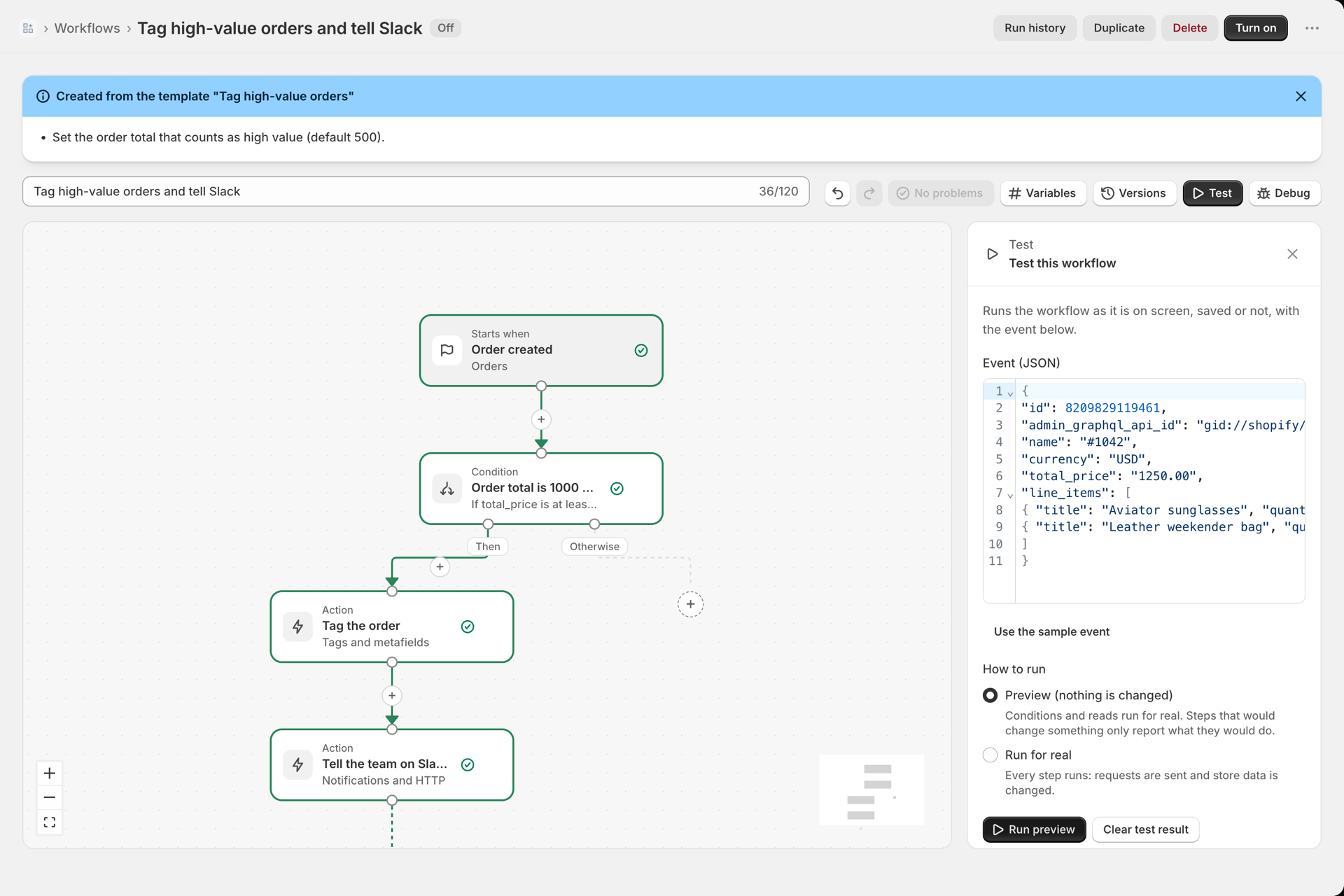
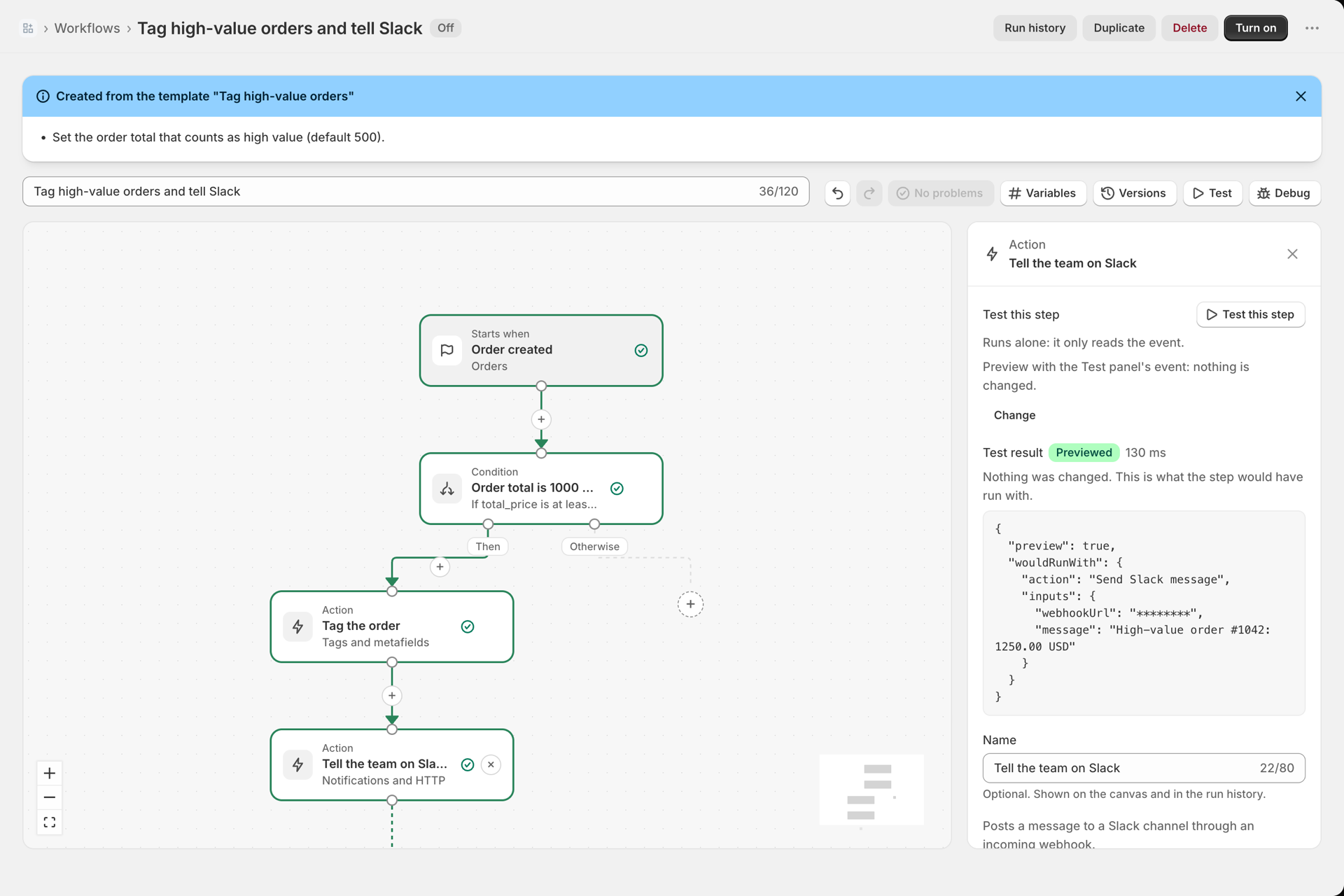
The canvas marks the path in green: trigger, condition, Tag the order, Tell the team on Slack. Select a step to see what it returned. In a preview the two actions do not run; they report what they would have done.
5. Turn it on
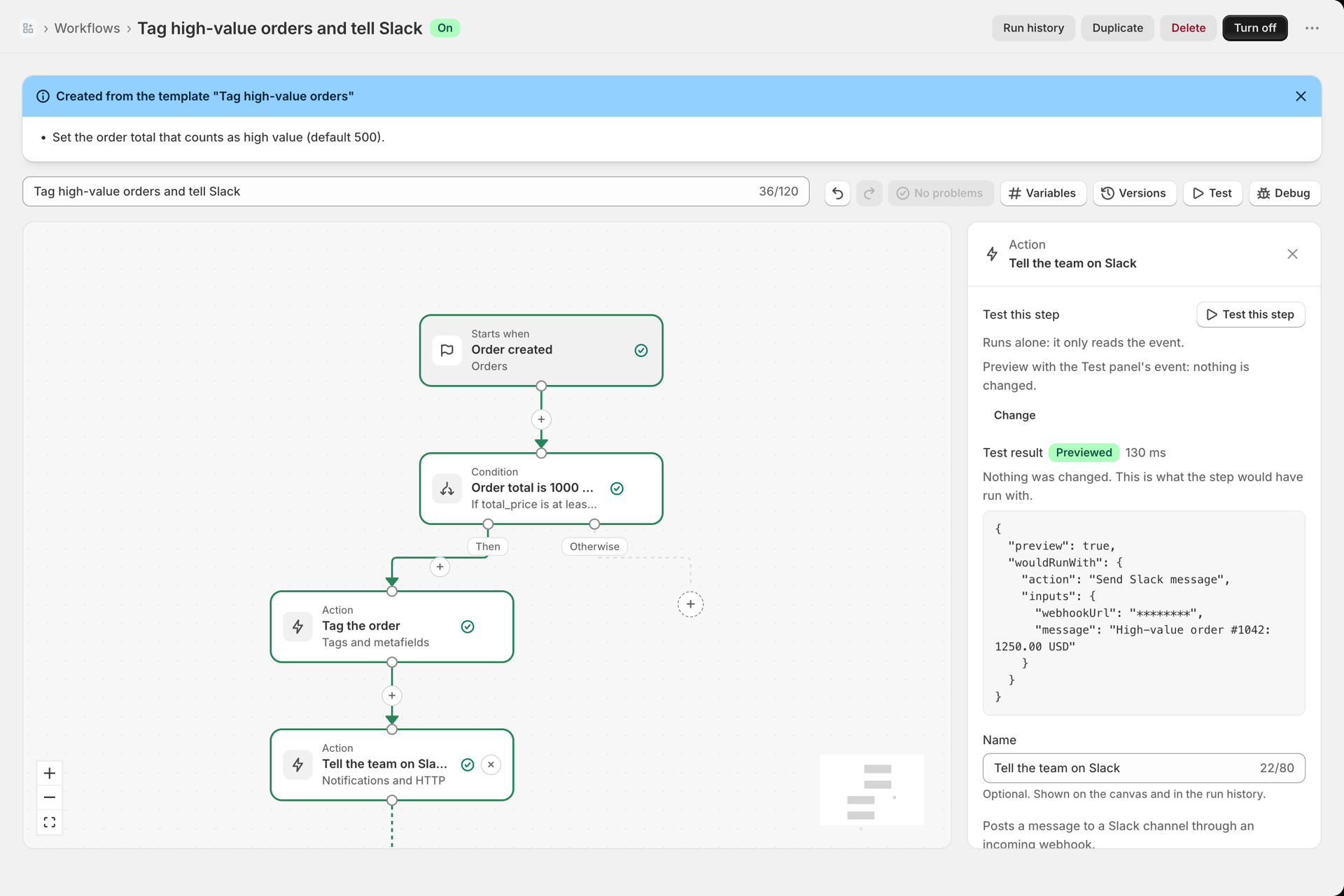
Select Turn on in the top bar. The badge next to the name changes from Off to On. From now on every new order runs the workflow: orders of 1,000 or more get the tag and the Slack message, smaller orders end at the condition. Open Run history to watch the first real runs; see Run history and troubleshooting.
Make it yours
- Only orders from one channel or country? Add a second rule to the condition, or filter on the trigger so the run does not even start: Trigger filters.
- Post to Discord or Microsoft Teams instead: Slack, Discord and Teams messages.
- Build a richer summary line with a small code step: Tutorial: your first code step.