

Tutorial: debug a workflow step by step
When a workflow does not do what you expect, the fastest way to find out why is to run it one step at a time and look at what every step returned. The editor has two tools for that: Debug for the whole workflow and Test this step for one step. This tutorial starts with a two-step workflow (a trigger and a Slack message), then looks at a workflow with a Repeat for each loop. Every workflow works the same way.
1. Start a debug session
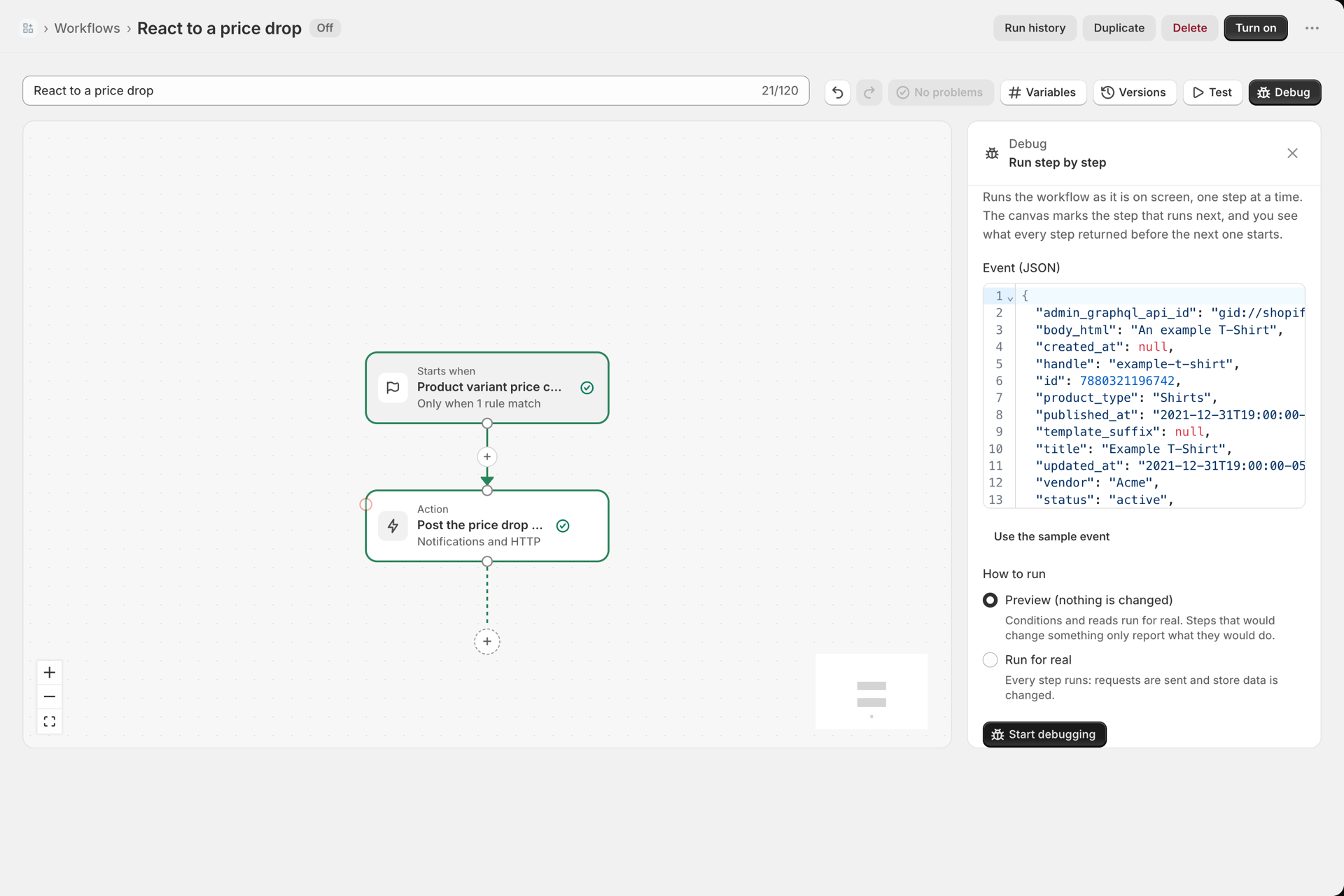
- Open the workflow and select Debug in the toolbar. The panel Run step by step opens.
- Check the Event (JSON). It starts with the sample event of the trigger; you can paste a real one.
- Keep Preview (nothing is changed). Reads and conditions run for real, steps that would change something only report what they would do.
- Select Start debugging.
2. Read the bar and the marks
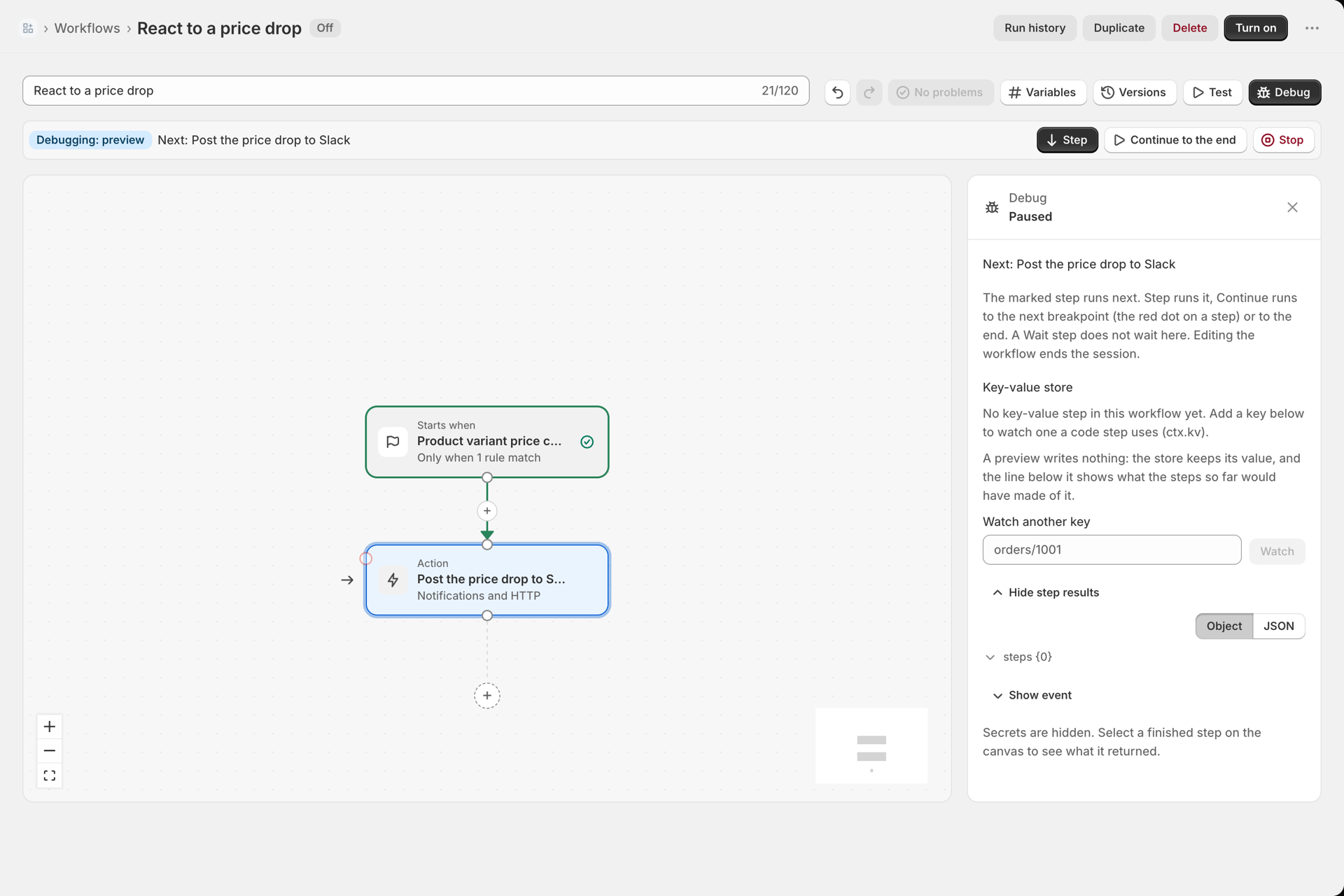
A bar appears above the canvas: Debugging: preview, Next: the step that runs next, and the buttons Step, Continue to the end and Stop. On the canvas an arrow points at the next step, and every step got a small dot: select the dot to set a breakpoint, and Continue will pause there. The side panel is titled Paused and explains the controls.
3. Step
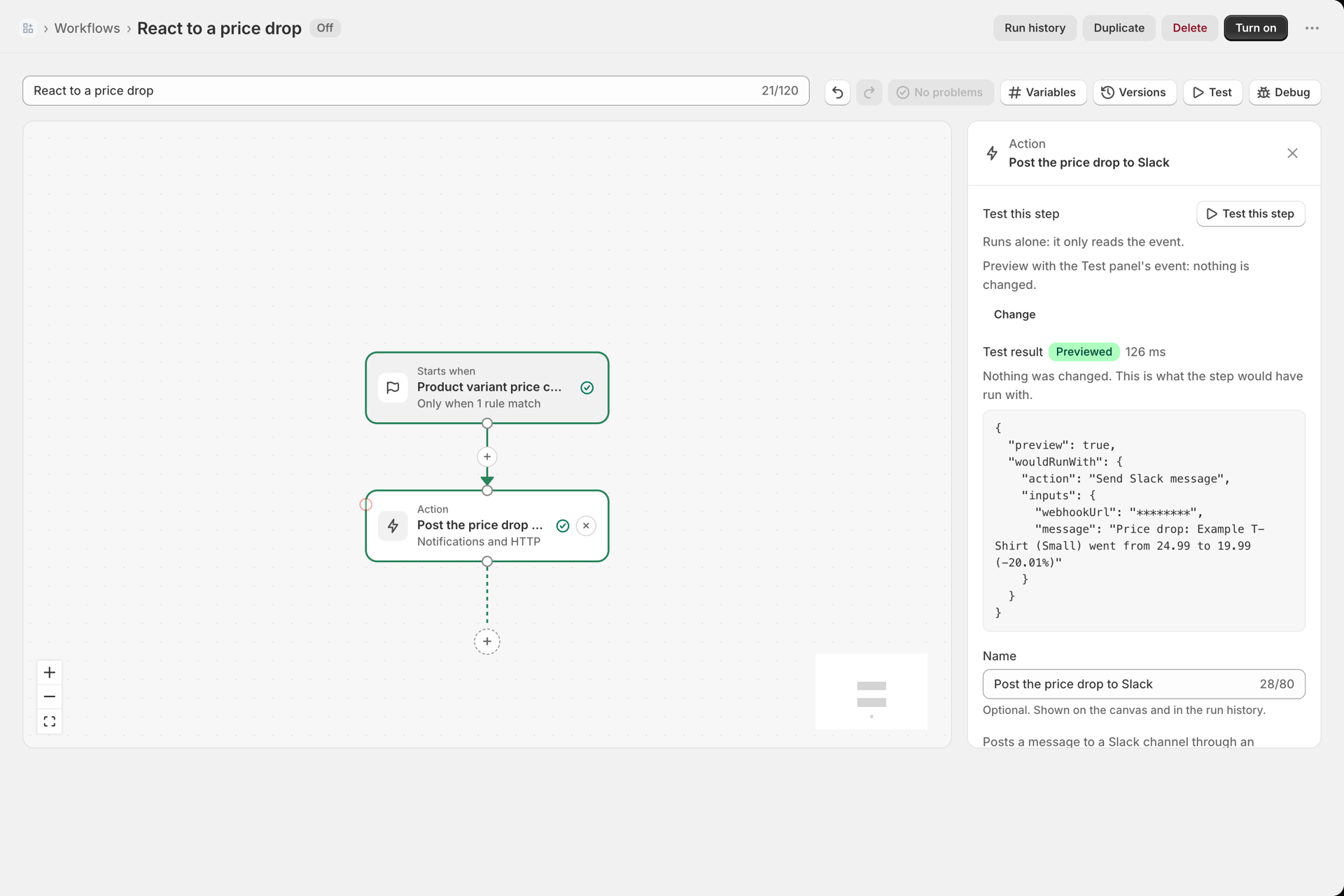
Select Step. The Slack step runs in preview: it does not post anything, it reports what it would have posted. Because it was the last step, the session ends right away: the bar disappears and the step is green. Select it to open its side panel with the result. Select any finished step at any time to see what it returned. The run is stored in the Run history as a test run.
4. A longer workflow with a loop
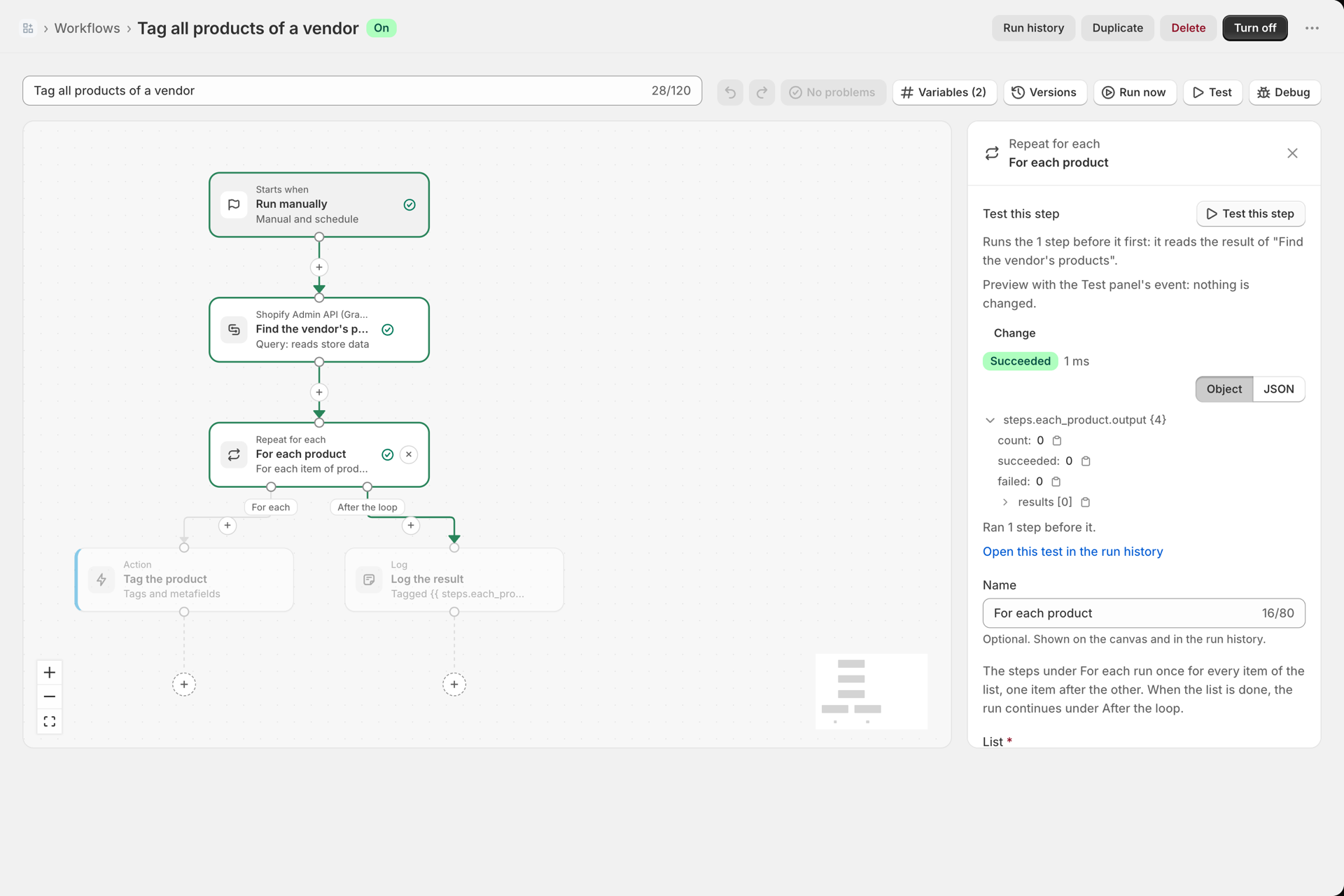
Open a workflow with more steps, for example the template Tag all products of a vendor: a Shopify query, a Repeat for each over the products it found, and a Log step after the loop.
- Start a debug session as above and select Step. The query runs and turns green. Select it on the canvas to see the products it returned.
- Select Step again. The loop starts. Inside a loop, Step runs the next step for the current item, and the bar tells you which item of how many is being worked on. When the last item is done the run continues under After the loop.
- Keep stepping until the bar says Next: Log the result. Under Hide step results the panel lists everything the steps so far returned:
steps.products, andsteps.each_productwith itscount,succeededandfailed.
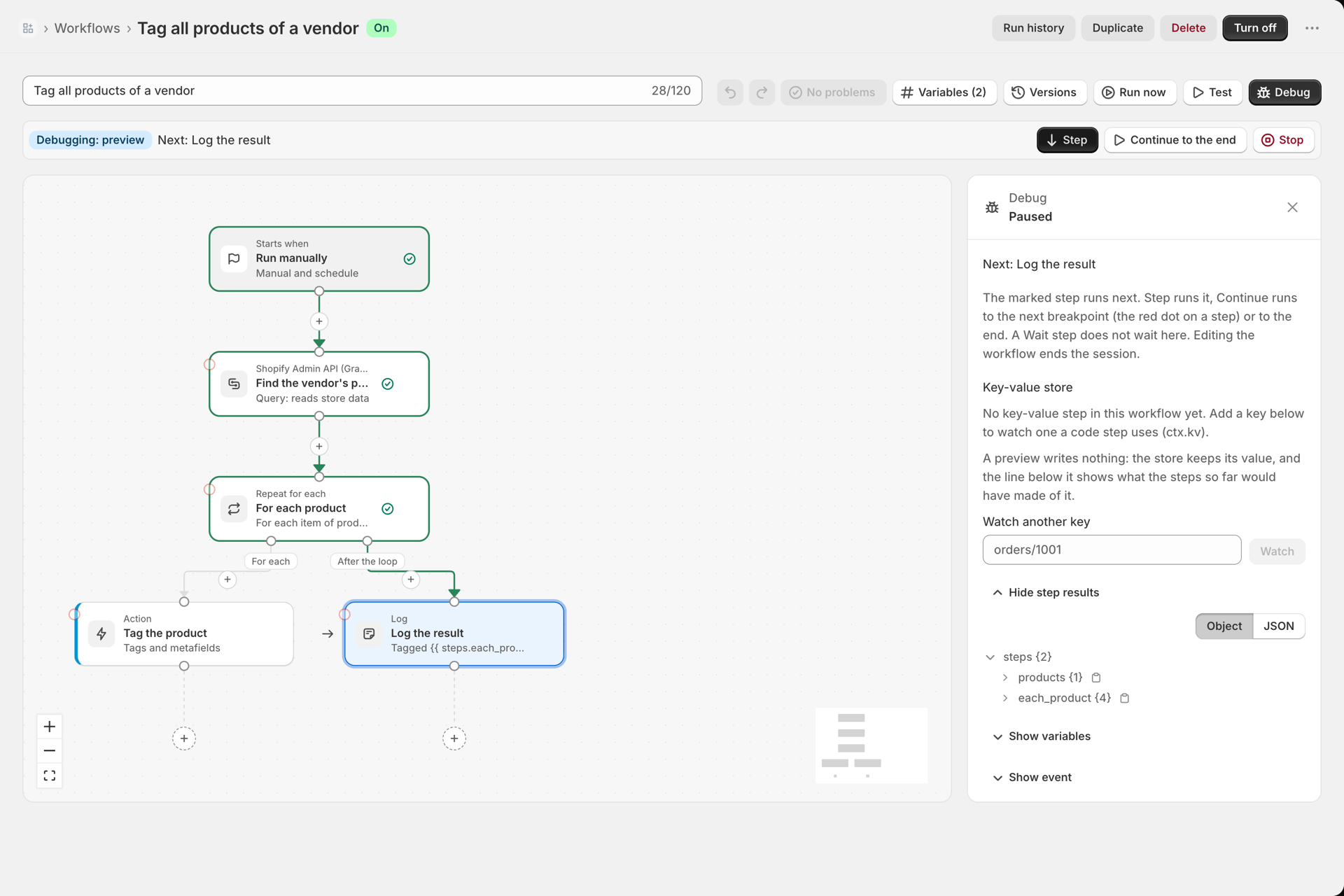
The Key-value store section is empty here because this workflow has no key-value step. In a workflow that reads or writes keys it lists them with their current value and marks what changed since the last step. Type a key into Watch another key to follow a key that a code step uses through ctx.kv.
5. Look at one step only
You do not always need the whole session. Select a step: the top of its side panel has Test this step. The text under it says what will happen: a step that reads nothing from earlier steps runs alone; a step that reads steps.*, sits in a loop or runs a saved function first runs the steps before it. Change switches between preview and for real.
When something is wrong
- A step is grey and was skipped: the condition before it took the other branch. Select the condition and compare its rule with the event.
- A variable is empty: open the variable picker on the field. After a test it lists the real paths of the real outputs, not only the known ones. See Variables and the variable picker.
- A step failed: the panel shows the error text and, for a temporary error, how many tries were made. See Run history and troubleshooting.