

Tutorial: your first code step
Most workflows never need code. When they do, a Run function step runs a few lines of JavaScript in a sandbox and hands the result to the next step. In this tutorial you add a code step to an order workflow that turns the order into one summary line, test the code on its own, and use the line in a Slack message.
If you followed Tutorial: tag high-value orders and tell Slack, continue in that workflow. Any workflow with the trigger Order created works.
1. Add the step
- Press the + after the last step. In Add a step, under Code and requests, pick Run function.
- Set Name to
Build the summary. - Under Code choose Write the code in this step. A JavaScript editor appears with a small example.
2. Write the code
Replace the example with this:
javascript
export default async function (input, ctx) {
  // The order that started the workflow
  const order = input.event.payload
  const items = (order.line_items ?? [])
    .map((line) => `${line.quantity} x ${line.title}`)
    .join(", ")
  const summary = `Order ${order.name}: ${order.total_price} ${order.currency} (${items})`
  ctx.log("summary", summary)
  return { summary, itemCount: (order.line_items ?? []).length }
}
What it does:
input.event.payloadis the order, exactly as the trigger delivered it.input.stepsholds what earlier steps returned, and any fields you put into Input (JSON) arrive next to them.ctx.log(...)writes a line into the run logs. It is the easiest way to see what the code saw.- Whatever the function returns becomes the step's output. Later steps read it as
steps.<step id>.output.summary.
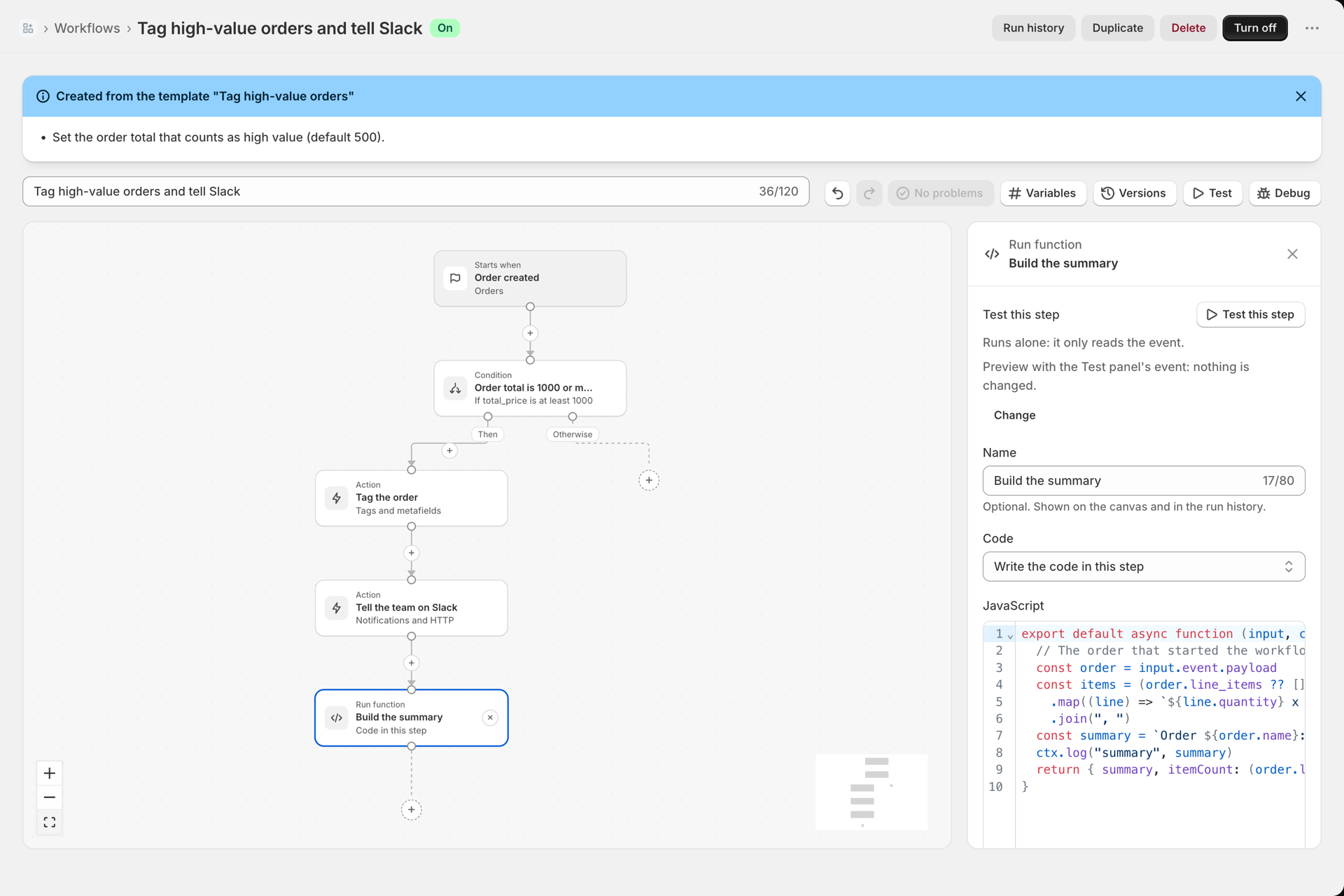
3. Test the code on its own
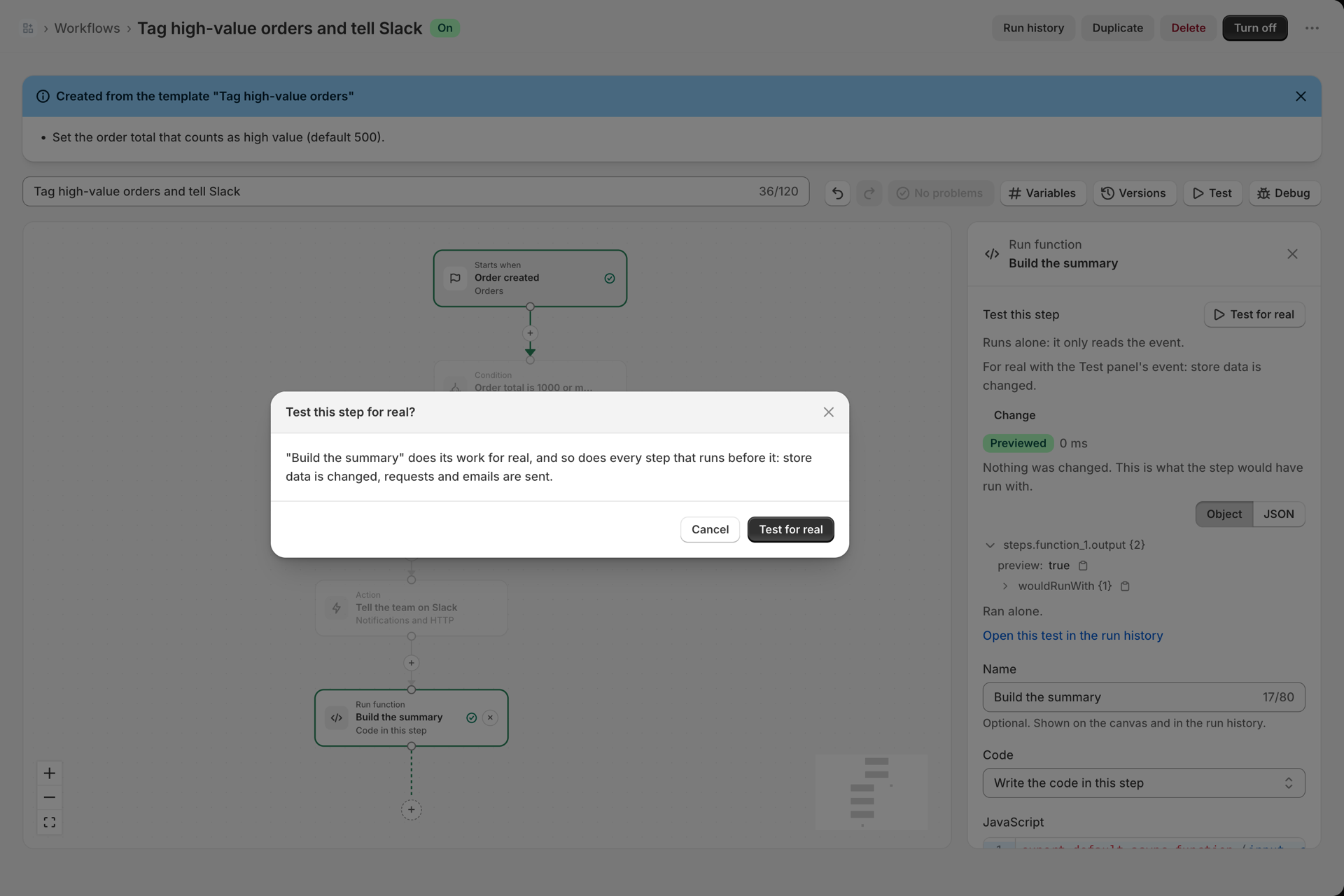
- At the top of the side panel select Test this step. The result says Previewed: in a preview, code does not run, because nobody can know what it would change.
- Select Change and pick Run for real in the Test panel. Back in the side panel the button now reads Test for real.
- Select Test for real and confirm. This code only reads the event and returns text, so nothing in the store changes.
The result turns to Succeeded and shows the returned object: summary with the order line and itemCount.
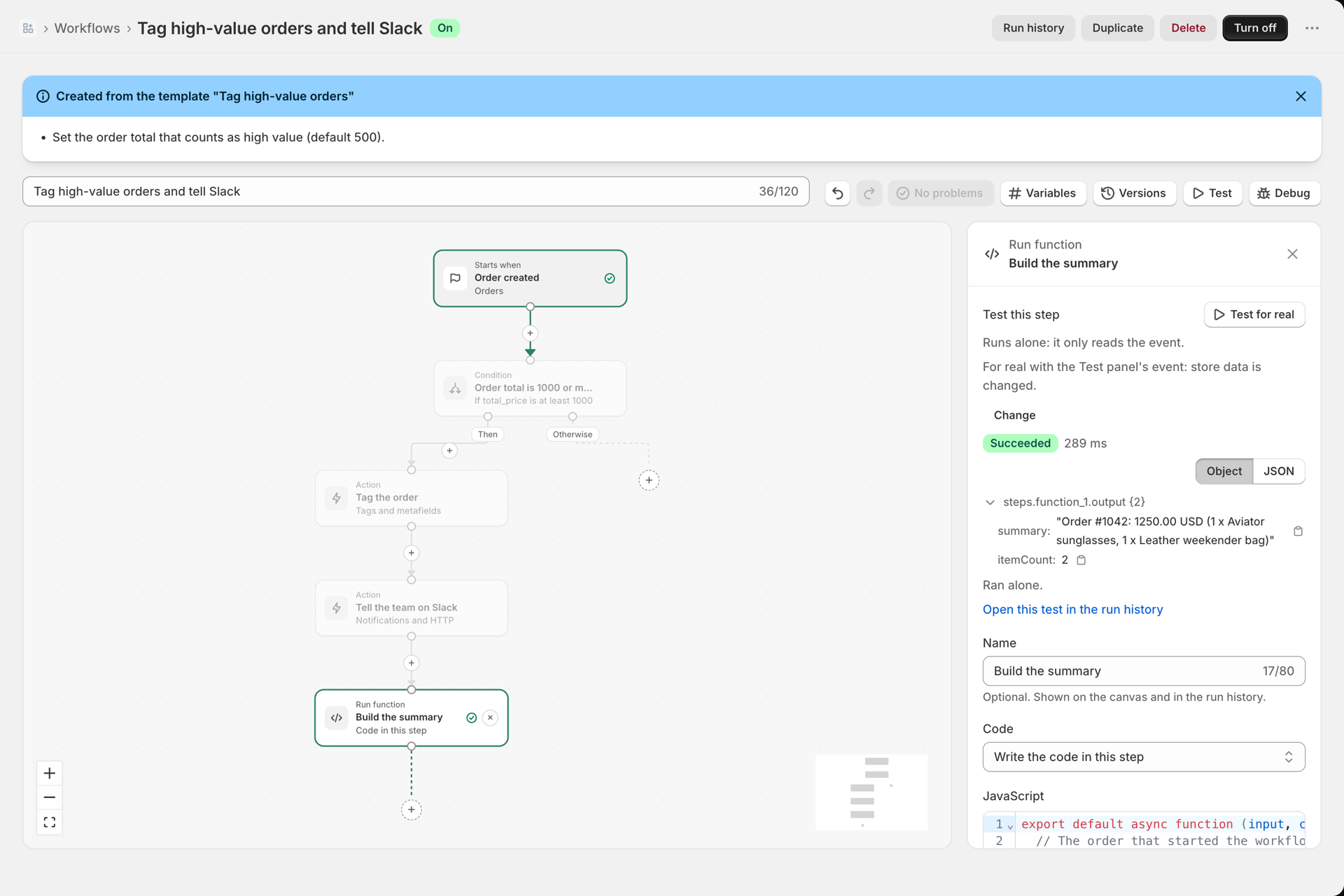
4. Use the result in the next step
- Add a Send Slack message step after the code step, or open the one you have.
- In Message, press the variable button and pick
steps.function_1.output.summary, or type:
High-value order: {{ steps.function_1.output.summary }}- Save. Run a Test of the whole workflow: in a preview the code step is previewed, so the message shows an empty summary. Use Run for real on the Test panel when you want the whole chain to run, or trust the real test of step 3.
Good to know
- A run has 5 seconds and 128 MB. Store data is read and changed with
ctx.shopify.graphql(query, variables), other systems are called withctx.fetch(url, options), up to 20 requests per run. See Run code and functions. - Secrets are read as
secrets.NAMEand are masked in logs. See Secrets. - A code step is only previewed in a preview. Its logs and the real output appear under Run history, tab Function runs.
- Want the same code in several workflows? Select Save as function under the editor. The step then runs the saved function, and you edit it in one place under Functions.